GitHub Projects includes a native Roadmap layout that turns issues and pull requests into a visual timeline. To make it work, pick the Roadmap view, set Start and Target date fields (or iteration fields), and add items with those fields filled in. Skip the date fields and you get an empty grid: the single most common setup mistake teams make with a GitHub project roadmap.
TL;DR:
- Most roadmaps remain empty because teams often skip creating and filling in start and target date fields before adding issues, which prevents items from appearing on the timeline.
- Configuring date or iteration fields, along with setting appropriate markers and zoom levels, significantly improves timeline clarity and workload visibility.
- Cross-repo and milestone integrations enable the roadmap to show overlapping work, release boundaries, and thematic grouping, making it more actionable for stakeholders.
- Using templates or importing existing ROADMAP.md files helps establish a consistent structure, but frequent updates are crucial to keep the roadmap relevant.
- Active filters, missing date or milestone data, or mixing routine issues with strategic items are common pitfalls that cause the roadmap to appear empty or cluttered.
Table of Contents
- What the Roadmap Layout Actually Shows
- How Do You Create a Roadmap Project on GitHub?
- Configuring Markers, Zoom, and Grouping for a Cleaner Timeline
- Templates and Public Roadmap Examples Worth Copying
- Best Practices for Keeping a Roadmap Actionable
- Why Doesn't My Roadmap Show Anything?
- An Editorial Take on Running Roadmaps in Practice
- Where Klaritea Fits Before You Ever Open a GitHub Project
- Official Docs and Examples Worth Bookmarking
- Sources
- FAQ
What the Roadmap Layout Actually Shows
The Roadmap layout plots issues, pull requests, and draft issues along a horizontal timeline based on their date or iteration fields. Every bar represents an item; its length reflects the span between its start and target dates. It's less a task list and more a visual argument for what's happening when.

This view sits alongside table and board layouts inside the same Project, and GitHub doesn't force any particular methodology on you. You can mix Kanban-style boards for daily execution with a Roadmap for the bigger picture, all pulling from the same underlying data.
Where the Roadmap layout earns its place:
- Milestone tracking — bars can align to milestones, showing which issues belong to which release.
- Custom field integration — grouping by theme, team, or priority field turns a flat timeline into something a stakeholder can actually parse.
- Cross-team visibility — one glance shows overlapping work across repos, which a table view buries in rows.
Pick table view for prioritization and triage. Pick board view for daily execution. Pick Roadmap when someone outside the engineering team asks, "What's shipping this quarter?"
How Do You Create a Roadmap Project on GitHub?
Getting a working timeline takes about five minutes if you do the steps in the right order. Do them out of order and you'll end up staring at a blank grid wondering what broke.
- Create or open a Project. Use an organization-level Project for cross-repo initiatives, or a repository-level one for a single codebase.
- Add a Roadmap view. Click the "+" next to your existing views, then choose the Roadmap layout, or start directly from a roadmap template when creating the Project. Roadmaps reached general availability in Projects back in March 2023, so this isn't a beta feature you need to enable.
- Create Start date and Target date fields (or use iteration fields) before you add a single item. This is the step people skip, and it's the reason so many roadmaps launch empty.
- Add issues and pull requests, then fill in the date or iteration field for each one. Items without a value simply won't appear on the timeline.
- Link milestones where relevant so release boundaries show up as visual markers.
- Save the view and share it. Anyone with read access to the Project can view a saved Roadmap without rebuilding your filters.
- Validate it. Confirm at least one item actually shows a bar on the timeline before you call the setup done.
Pro Tip: Add the date fields to a single test issue first and confirm it renders correctly before bulk-adding your backlog. Debugging one item is a lot faster than debugging fifty.
Permissions matter here too: only people with write access to the Project can add fields or change layouts, while read access is enough to view a saved Roadmap. Keep that in mind before you promise a client-facing view to someone outside the org.
Configuring Markers, Zoom, and Grouping for a Cleaner Timeline
A roadmap with dates but no configuration still looks cluttered. The controls that fix that live in a few specific menus, and most teams never touch them.
Start with the Date fields menu, where you tell GitHub which field represents the start of an item and which represents the target. If you're using iterations instead of dates, this is also where you point the view at that field.
Next comes the Markers menu. Markers draw vertical lines across the timeline for iterations, milestones, or specific item dates, which makes it far easier to see workload distribution at a glance rather than squinting at overlapping bars.
Then there's zoom and density:
- Zoom level switches the timeline between month, quarter, and year views, which changes how far ahead the roadmap reads.
- Density controls compress or expand row height so a fifteen-item roadmap doesn't require constant scrolling.
- Grouping and slicing by team, theme, or quarter turns one messy timeline into several clean, audience-specific ones.
A Roadmap grouped by quarter and zoomed to a three-month window looks completely different from the same data zoomed to a year with no grouping at all, even though nothing about the underlying issues changed.
Templates and Public Roadmap Examples Worth Copying
You don't have to design a roadmap structure from nothing. A ROADMAP.md file in a repository typically follows a predictable shape: a short summary at the top, a breakdown of phases, a list of milestones, and a progress table showing what's done versus in flight. The gsd-core roadmap template is a solid, minimal example of that pattern if you want something to copy directly.
Inside GitHub Projects itself, you have two starting points:
- Start from a Roadmap template when creating a new Project, which pre-builds the date fields and layout for you.
- Import structure from an existing repo if a team already has a
ROADMAP.mdyou want to mirror inside a Project view.
Whether to make the roadmap public or internal depends on your audience. Open-source maintainers and customer-facing product teams often benefit from a public roadmap, the way GitHub's own public roadmap works, since it sets expectations for outsiders. Internal teams doing iteration-based work are usually better off keeping the roadmap private, where priorities can shift without an external audience reading into every change.
Best Practices for Keeping a Roadmap Actionable
A roadmap that never gets updated is worse than no roadmap at all, because people keep trusting stale dates. A few habits keep that from happening.
- Start with shorter cycles. Teams that begin with a six-week deliverable build a repeatable tempo faster than teams that plan in open-ended quarters from day one.
- Standardize custom fields. Status, effort, theme, and iteration fields, named consistently across every Project, keep cross-repo roadmaps legible instead of a patchwork of one-off labels.
- Aggregate at the org level. Use an org-level Project as the canonical roadmap and let repo-level Projects handle execution, then use table view underneath for prioritization work.
- Automate the busywork. Set up automation so a merged pull request flips a linked issue to Done automatically, instead of relying on someone to remember to update the board.
Pro Tip: If you need numeric prioritization like RICE or ICE scoring, calculate it outside GitHub and drop the result into a numeric custom field. Projects has no built-in formula fields, so sorting by score in table view is the only way to make that math useful inside GitHub itself.
Why Doesn't My Roadmap Show Anything?
Almost every broken roadmap traces back to one of four causes, and all four are fast to fix.
- No date or iteration fields set. Create them first, before adding items, not after.
- Active filters or grouping hiding items. Clear every filter to confirm items exist before assuming they're missing.
- Bugs mixed in with strategic initiatives. Tag or separate roadmap-level items from routine tickets so the timeline reflects outcomes, not noise.
- Issues with no milestone or date attached. An issue with nothing in its date field simply has nowhere to render.
An Editorial Take on Running Roadmaps in Practice
Most teams treat the Roadmap layout like a second task list, and that's the mistake. It should hold initiatives, not tickets. If an item on your roadmap could just as easily live on a sprint board, it probably belongs there instead.
The setup that tends to hold up: an org-level Project as the single source of truth for cross-repo timing, with repo-level boards handling the actual grind of execution. Review the roadmap on a fixed cadence, six weeks or a quarter, and treat every item on it as a hypothesis rather than a promise. Roadmaps that survive contact with reality are the ones nobody's afraid to edit.
— Karl
Where Klaritea Fits Before You Ever Open a GitHub Project
A GitHub Roadmap is only as good as what you feed it, and most founders open a blank Project with a fuzzy idea and no real sense of what belongs on the timeline yet. Klaritea exists for the step before that: it turns a one-line idea into a structured model covering your market, competitors, features, and requirements, then produces a build spec you can hand straight to a GitHub-ready roadmap instead of guessing at what phase one even is.
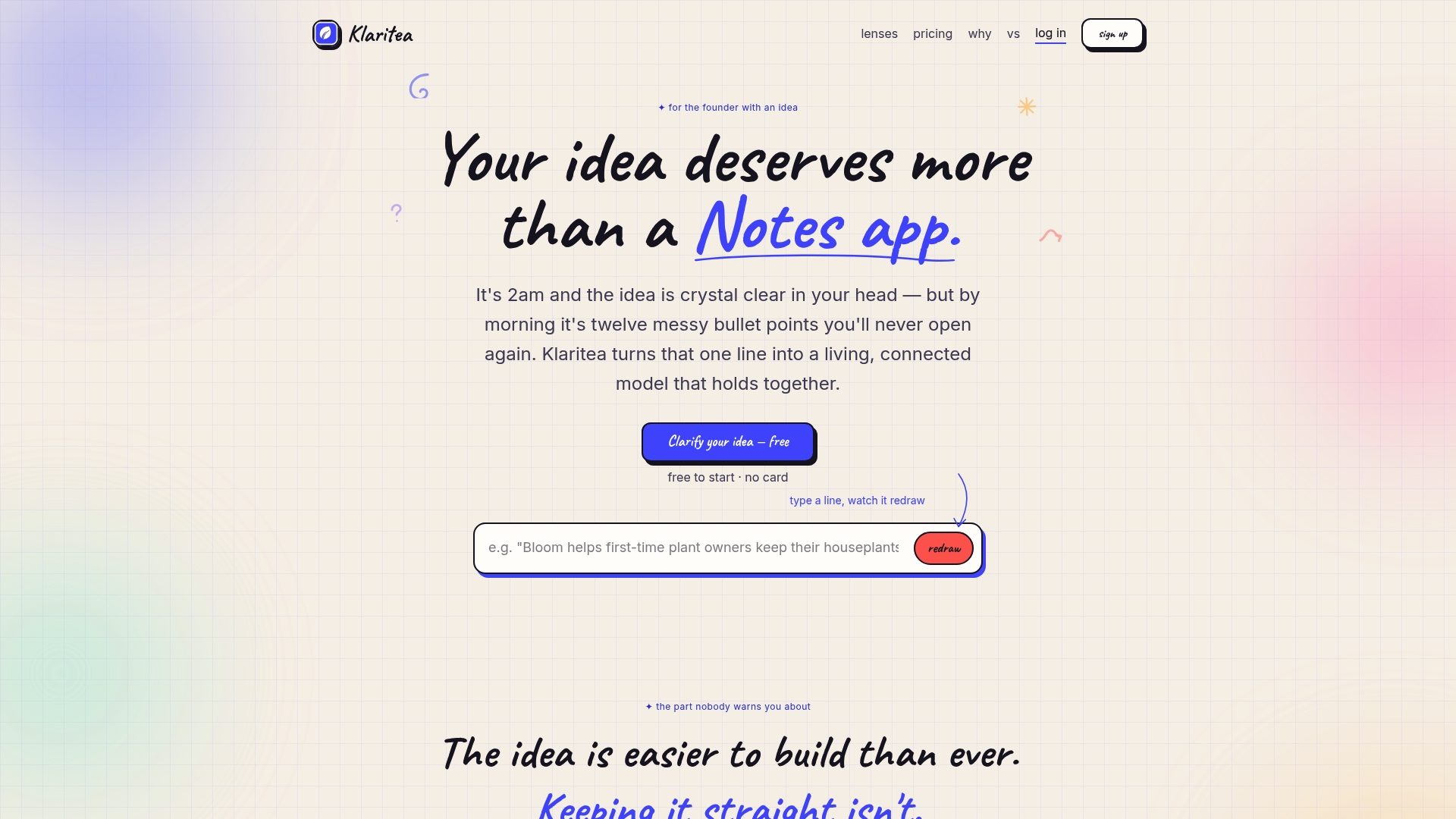
It's not a replacement for GitHub Projects. It's the planning layer that decides what deserves a spot on that Roadmap layout in the first place, complete with the reasoning behind each decision so your team isn't debating priorities from scratch. Klaritea offers free and paid subscription tiers with varying features and export options built for teams that need more than a single connected model. Check the pricing page or read more about why the connected model matters before your next roadmap planning session.
Official Docs and Examples Worth Bookmarking
For hands-on setup, GitHub's own roadmap layout customization guide and Projects best practices cover configuration in detail. The GitHub public roadmap doubles as a real-world example worth studying.
Sources
FAQ
How Do I Create a Project Roadmap on GitHub?
Open or create a Project, add a Roadmap view, and set Start and Target date fields (or iteration fields) before adding any issues. Fill in those fields on each item so they render as bars on the timeline, using the Roadmap layout guide for the exact menu locations.
Can ChatGPT Create a Project Roadmap?
An AI tool can draft the structure of a roadmap, like phases, milestones, and rough sequencing, but it can't set live date fields inside your actual GitHub Project. Tools built specifically for phase-zero planning, like Klaritea, go further by turning that draft into a structured build spec meant to map into GitHub Projects directly.
What Are Some Basic GitHub Projects to Practice On?
A personal to-do tracker, a small open-source contribution repo, or a simple content calendar are common starting points for learning Projects. Each lets you practice table, board, and Roadmap views without the complexity of a multi-repo organization setup.
Why Is My GitHub Roadmap Empty?
The roadmap almost always appears empty because items are missing Start or Target date values, or because an active filter is hiding them. This is the most common configuration mistake teams make when setting up a roadmap for the first time.
Does GitHub Support Iteration-Based Roadmaps Instead of Dates?
Yes. You can point the Roadmap view at an iteration field instead of separate Start and Target date fields, which works well for teams running fixed-length sprints. Either approach positions items on the same timeline; the choice depends on whether your team plans in calendar dates or recurring iterations.